Online Audio Editor vs DAW: Which One Do You Need?
A browser editor changes a recording you already have. A DAW makes recordings. Most spoken-word jobs are the first kind of work. Here is how to choose for the file in front of you, and how to use both without losing quality.
By the fix.fm team · Published · Updated
Two tools for two kinds of work
A digital audio workstation is built to make recordings: many tracks, live input, instruments, effect plugins and a project file that grows over months. A browser editor is built to change a recording you already have: cut it, move pieces around, repair the part that sounds wrong and export a file. Most spoken-word jobs are the second kind of work, and most of the arguments about which tool is "better" come from comparing them on the first.
This article is about choosing honestly for the recording in front of you. It describes what the fix.fm editor does and does not do, where a DAW such as Audacity, REAPER, GarageBand or Logic Pro is the right call, and how to move audio between the two without losing quality.
What a browser editor is good at
The editor on this site opens a recording in the tab, keeps the audio on your computer and never uploads it. There is nothing to install and no account. For a podcast segment, a voice memo, an interview or a lecture clip, that covers the whole job:
- Cuts and timing. Drag across the waveform to select a range, then Split, Delete or Keep it, with or without closing the gap. Drag a clip header to move it in time or onto another track; drag its edges to trim and its corners to fade. Every step has Undo.
- Several recordings together. Add a recording to any of four tracks at the playhead, so an intro can follow an interview on one track or a second voice can overlap on another. Each track has gain, Mute and Solo.
- Repair of one section. Select the noisy, buzzing or too-quiet part, isolate it and run the checks. The noise, hum and level repairs are the same ones the whole-file fixers use, applied to a selection of up to 30 seconds, with Before and After playback. Repairing one section explains the edges and the limit.
- Export. 16-bit WAV or 192 kbps MP3 of the whole mix, the selected clip or the selected range. A checkpoint can be kept in this browser between sessions.
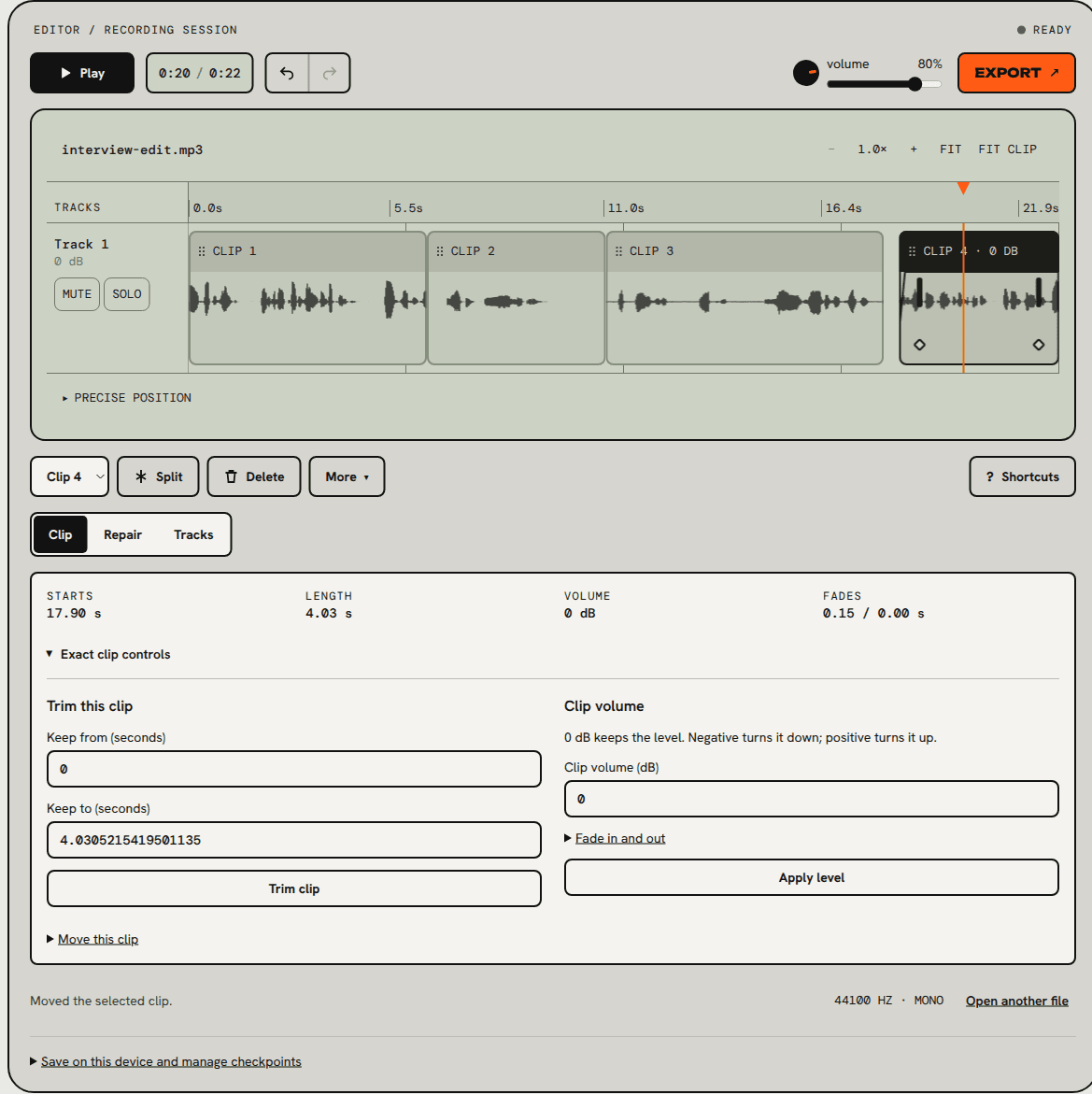
The things it is deliberately missing matter just as much. It does not record from a microphone, host effect plugins, export video or keep projects in the cloud. Each recording must be under five minutes and 50 MB. Echo, muffled sound, distortion, one-sided stereo and wind are repaired by the whole-file fixers, not inside the editor. Those limits are listed on the editor page itself, so you can check them before you start.
When you want a DAW
Pick a DAW when the recording is still being made, or when the edit depends on tools a browser editor does not have:
- Recording and monitoring. Live input from an interface, input metering, punch-in, multiple takes. A DAW records; our editor edits files that already exist.
- Music and sound design. MIDI, virtual instruments, tempo grids, automation lanes and a mixer with buses. None of that is spoken-word editing.
- Plugins and a processing chain. EQ, compression, de-essing, limiting and metering plugins from any vendor, in any order, with settings saved in the project.
- Long sessions. An hour of multitrack audio, hundreds of edits and a project you will return to for weeks. The browser editor caps recordings at five minutes and keeps one checkpoint per browser.
- Delivery formats beyond WAV and MP3. FLAC, AAC, multichannel files, stems or video with embedded audio.
Cost is not the deciding factor. Audacity is free and open source and runs on Windows, macOS and Linux. REAPER offers a full-function 60 day evaluation, after which a discounted license is 60 US dollars for individuals and small businesses. GarageBand ships free with a Mac, and Logic Pro is Apple's paid step up from it. A good DAW is cheap or free; the real cost is the install, the setup and the learning curve, which is exactly what a browser editor removes.
A short decision table
| You have | Use |
|---|---|
| A recorded voice file under five minutes with a few mistakes to cut | Browser editor |
| Hiss, hum or a quiet answer in one part of a recording | Browser editor, Repair on a selection |
| An intro, an interview and an outro to join into one file | Browser editor, one per track |
| A whole-file problem such as echo, distortion or wind | The matching fixer, then edit if needed |
| Live recording, several microphones, music beds, plugins | DAW |
| An hour-long multitrack session or a weekly show template | DAW |
| A client who needs stems, FLAC or AAC | DAW, or the DAW's export after a browser rough cut |
Does the browser lose quality?
No, as long as you export WAV. The editor decodes your file to PCM, edits metadata about where clips start and stop, and renders a new 16-bit WAV. Cuts, moves, fades and gain are exact; nothing is re-encoded until you ask for MP3. An MP3 export is a new 192 kbps encode, so a recording that arrived as MP3 goes through a second lossy generation. WAV vs MP3 covers what that costs and when it is fine.
A DAW works the same way. Its edits are non-destructive and it renders a new file at export. The quality difference between the two is not in the editing; it is in what you do to the audio with processing, and in how many lossy encodes the file goes through on the way to the listener.
Using both
The two tools combine well when you treat the browser editor as the fast first pass and the DAW as the finishing room:
- Rough cut in the browser. Remove false starts, long pauses and the parts you will not use. Repair the hissy section while you still remember where it is. Export WAV.
- Finish in the DAW. Import the WAV, add music, run your processing chain, master and deliver. The browser export is already the right length, so the DAW session starts clean.
It also works in the other direction. If a DAW session has one passage with a fan or a buzz and you do not own a dedicated restoration plugin, export that passage as WAV, repair the selection in the browser editor, export WAV again and drop it back on the track. Keep both versions until you have listened to the join at normal volume.
Whichever order you use, measure the final file rather than the intermediate ones. The LUFS meter reads integrated loudness and true peak without changing the audio, and LUFS vs dBFS explains which number matters for your platform.
What to try first
If the recording exists, is spoken word and is under five minutes, open it in the audio editor and make the edit. You will know within a minute whether it needs more than that. If it does, the WAV you export is a clean start for any DAW.